29 Device-trust CAA via MDM
Grants access to sensitive apps based on the state of the device it comes from, not just to the account. Endpoint verification collects posture signals — OS version, disk encryption, screen lock, admin-approval state, company-owned flag — into the Context-Aware Access attribute set, and an access level built from those attributes is applied through the three DEFAULT policies (all Google-owned apps, all SAML apps, all OAuth apps). The signals depend on the Endpoint Verification helper or Chrome extension has to be deployed and the user signed into the managed Chrome profile.
Documentation: Protect your business with Context-Aware Access · Deploy Context-Aware Access
Caveats
- Block is the only action that is a control — Monitor is a dry run that always allows, and Warn lets the user through regardless, showing only an in-app warning notification, so a policy parked on Warn admits everyone while the log fills with reassuring rows. Warn is also not support by many apps, narrowing coverage without telling you. Read the log’s Event column rather than the action you configured: ‘Access Denied (Monitor mode)’ means nothing was enforced.
- Rolling the default policies straight to Block is the classic CAA self-lockout — run Monitor first, read the log, then Block, and keep the break-glass admin (№19) OU exempt throughout. The OAuth default policy bites third-party sign-ins, which is where integrations break quietly, so the monitor log earns its keep there most.
- An access level nothing can satisfy locks everyone out the moment it goes Active — and zero device signals is the usual cause. A CloudManagementEnrollmentToken enrols the BROWSER into Chrome Enterprise Core and delivers no device signals by itself; ‘Device state: No Device Signals’ with ‘Device ID: UNKNOWN’ in the CAA log means the user is not signed into the managed Chrome profile with both device-signal toggles on, or the Endpoint Verification helper is not actually deployed on macOS/Windows.
- CAA does not apply to a session already established — combine it with session length (№12) and cloud session control (№40), or an attacker with a stolen cookie keeps access from an untrusted device.
- Requires Enterprise Standard+, Education Standard+, Frontline Standard+, Enterprise Essentials Plus or Cloud Identity Premium AND an MDM/device-management posture — the licence alone is not enough, and standing up device management is the bulk of the work. Personal/BYOD devices will fail a company-owned condition, so decide the BYOD story before enforcing, not during the incident it causes.
Setup steps
- open ↗
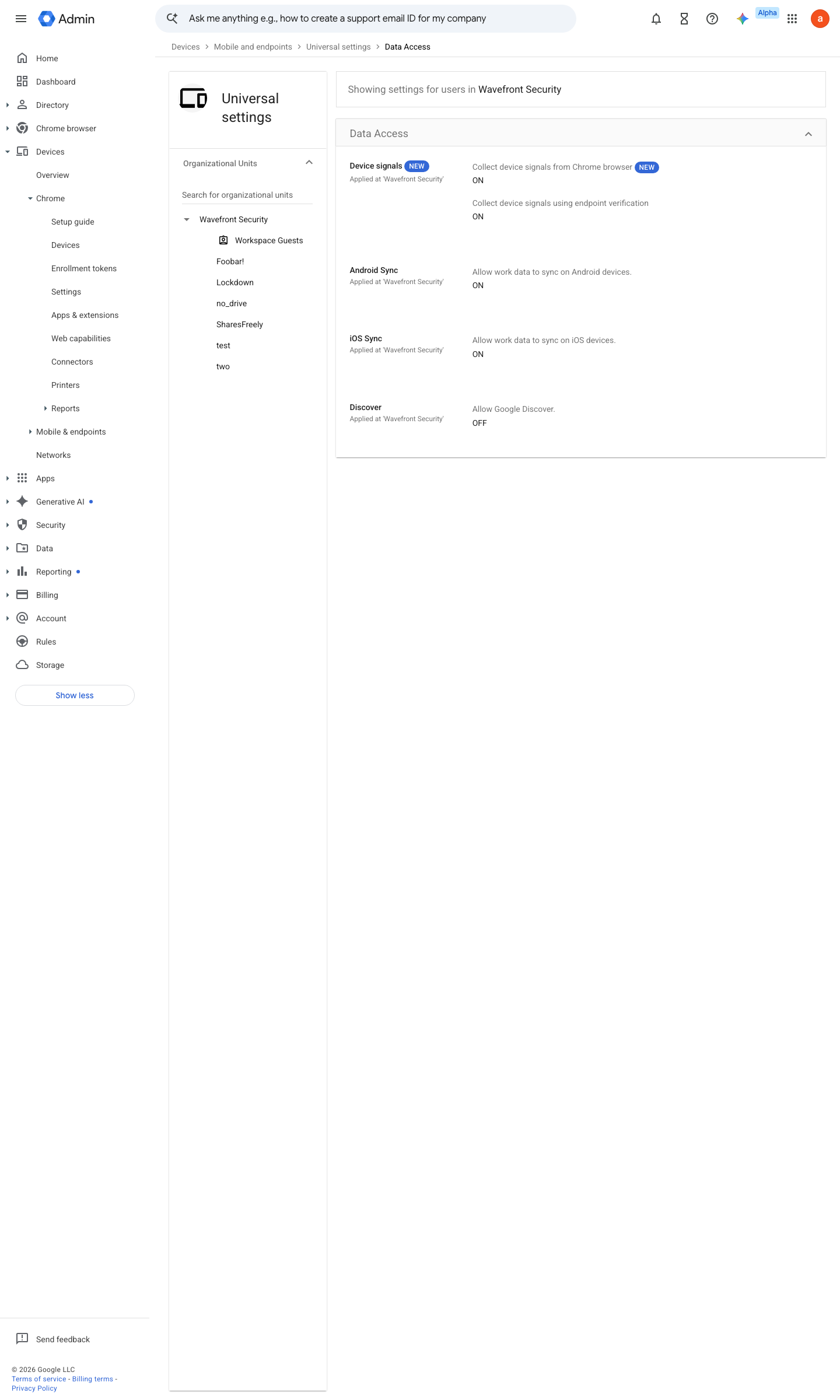
https://admin.google.com/ac/managedsettings/724141353720/UniversalAdditionalSettingsTab?vid=EMM_UNIVERSAL_SETTINGS_VIEW · captured 2026-07-15
Devices › Mobile & endpoints › Settings › Universal › Data access- Collect device signals using endpoint verification
ON- Collect device signals from Chrome browser
ON (for the target OU)
- open ↗
https://admin.google.com/ac/security/context-aware/access-levels · captured 2026-07-15
Devices › Mobile & endpoints › Settings › Universal › SecurityDevice approvals = Require admin approval. Applies to user-owned/personal devices; company-owned devices registered by serial number are auto-approved (except Android work-profile devices)
- open ↗
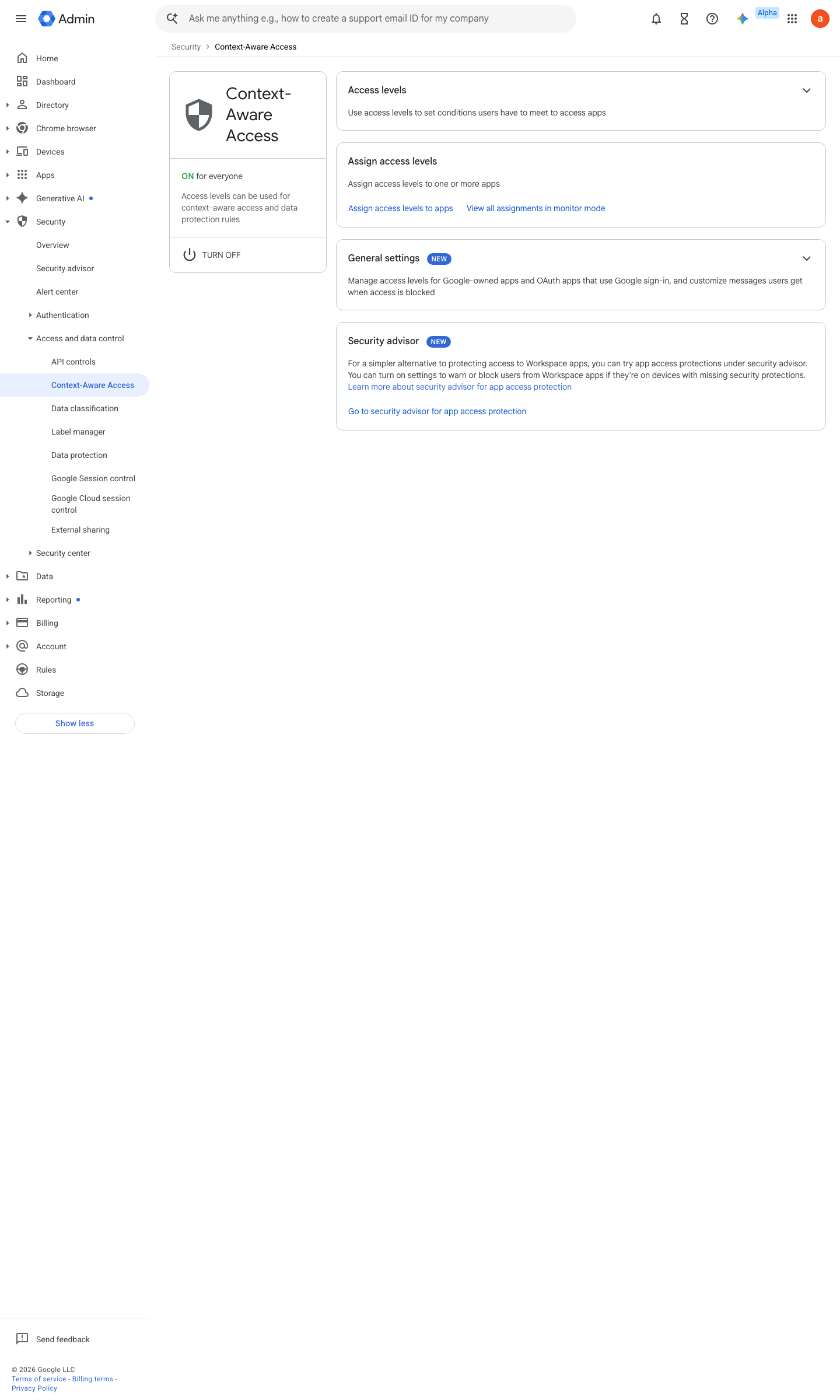
https://admin.google.com/ac/security/context-aware · captured 2026-07-15
Security › Access and data control › Context-Aware Access › Access levels- Access level 'trusted-device': Device policy
admin-approved AND encrypted storage AND screen lock AND OS version ≥ baseline- company-owned
true
-
Security › Access and data control › Context-Aware Access › Access levelsdevice.chrome.management_state == ChromeManagementState.CHROME_MANAGEMENT_STATE_BROWSER_MANAGED && device.chrome.versionAtLeast("148.0.0.0") - open ↗
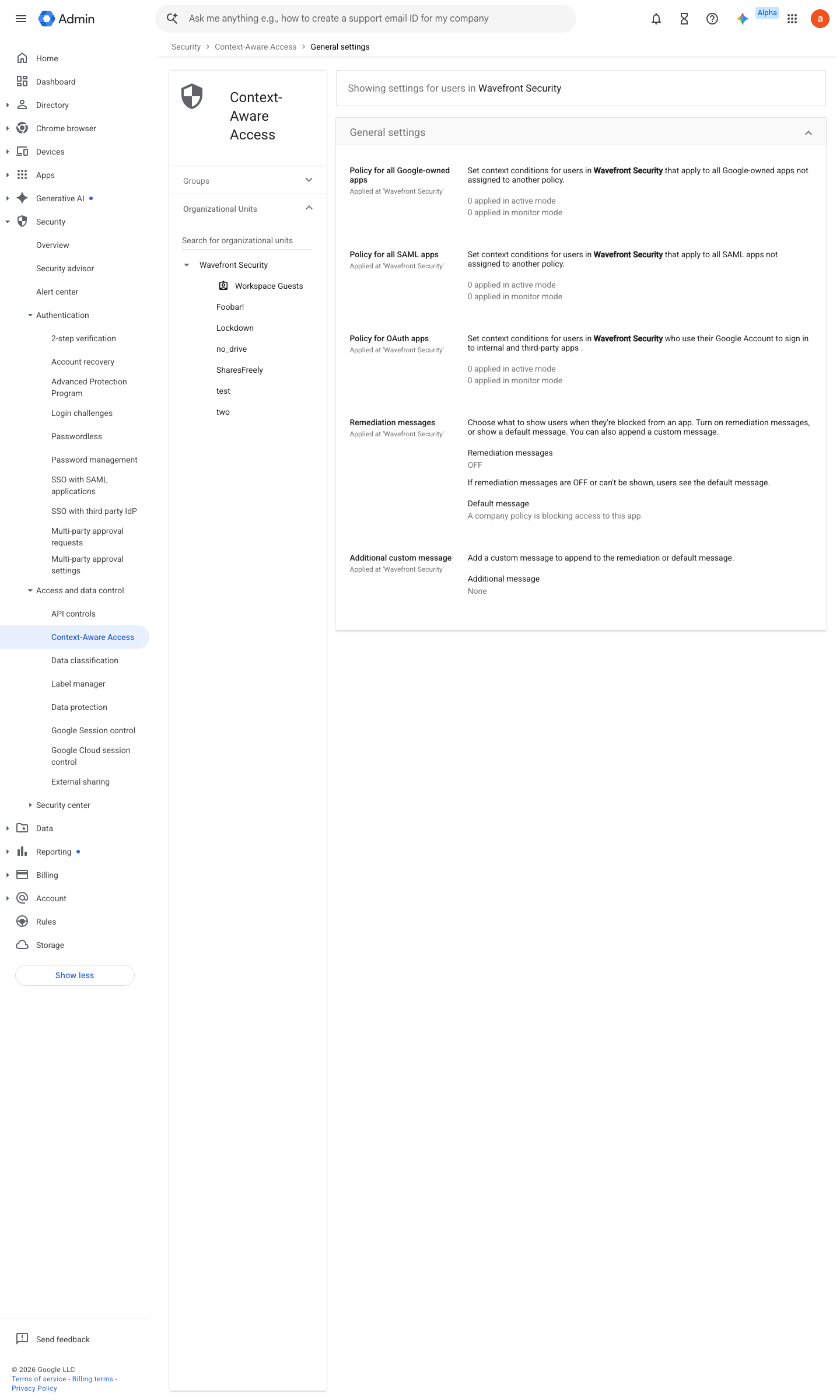
https://admin.google.com/ac/security/context-aware/settings · captured 2026-07-15
Security › Context-Aware Access › General settingsGeneral settings: Policy for all Google-owned apps / all SAML apps / OAuth apps = trusted-device; Action = Monitor first, then Block once the monitor log is clean. Do not use Warn (OAuth policies offer only Monitor and Block)
Ongoing maintenance
- automatable: script On every Chrome major release: raise the versionAtLeast() floor in the CEL access level.
- requires a human Weekly: work the device-approval queue — pending approvals block real users.
How to verify
-
From an unmanaged browser, sign in as a test user — the CAA log should show the device failing the level (Blocked, or Access Denied (Monitor mode) while ramping).
-
From a managed device, confirm the log shows device signals present (no "No Device Signals" / "Device ID: UNKNOWN").
v0.0.3 Prevent edition Ent Std+ + MDM policy #25 · #4, #7 ↗